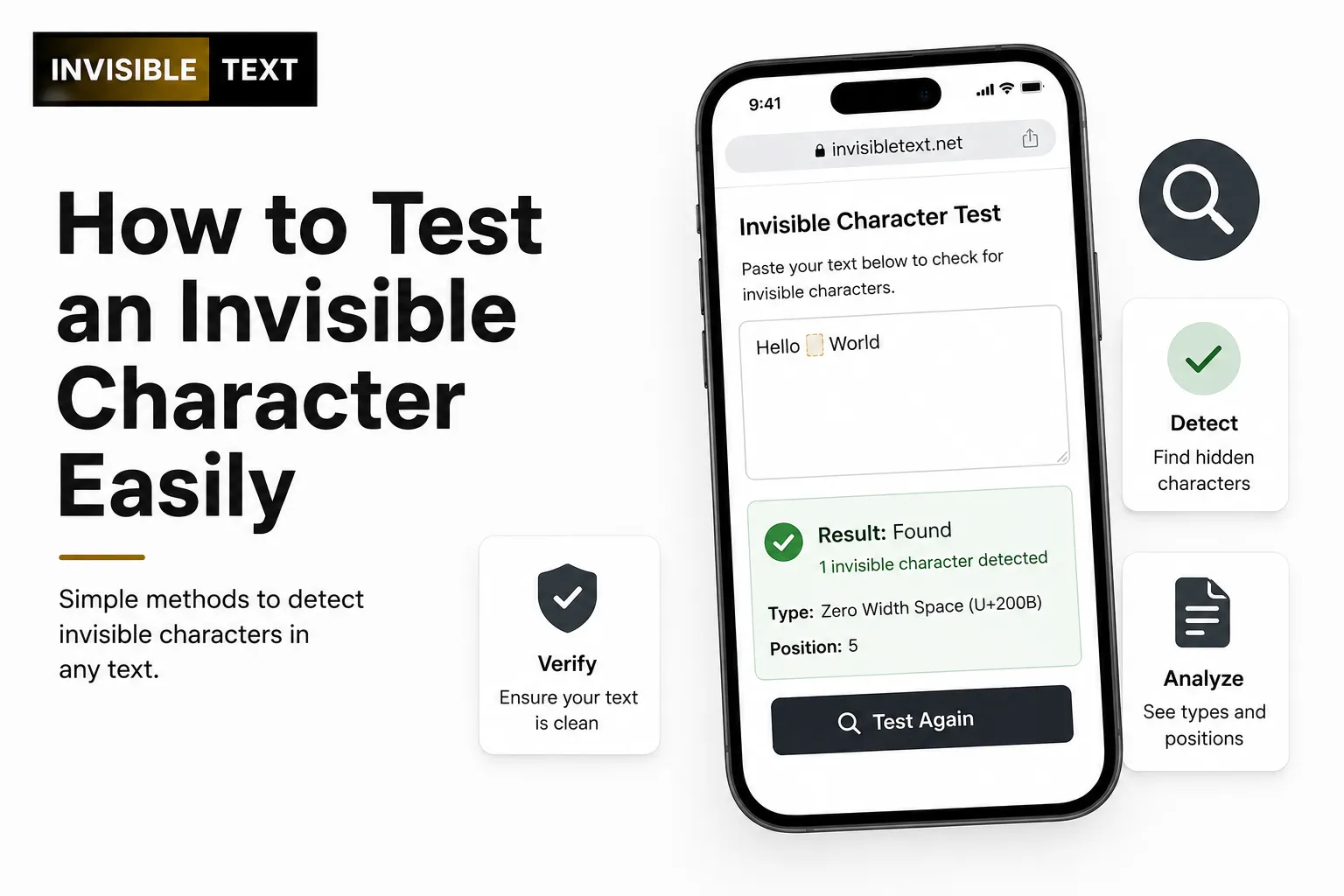
Have you ever copied an invisible character only to wonder if it actually worked? Maybe you pasted it into a username, message, or online form, but nothing seemed to happen. Since invisible characters don’t appear on your screen, it can be difficult to tell whether they were copied correctly or removed by the platform.
The good news is that there are several easy ways to test an invisible character. You don’t need coding skills or special software. In this guide, you’ll learn how to check if an invisible character is truly invisible, why some websites reject it, common mistakes to avoid, and the best methods for testing it on different devices and platforms.
What Is an Invisible Character?
An invisible character is a Unicode character that has no visible appearance but still exists as part of the text.
Unlike a regular letter or space, it doesn’t display anything on the screen. However, computers can still detect and process it.
Common invisible characters include:
- Zero Width Space (U+200B)
- Zero Width Non-Joiner (U+200C)
- Zero Width Joiner (U+200D)
- Word Joiner (U+2060)
These characters are often used for text formatting, language support, emoji creation, and invisible usernames.
Why Should You Test an Invisible Character?
Not every invisible character works the same way.
Some websites remove invisible characters automatically. Others accept only specific Unicode characters.
Testing helps you know whether:
- The character copied correctly
- The platform supports it
- The character remains after pasting
- The text contains hidden Unicode characters
How to Test Whether an Invisible Character Is Really Invisible
Here are several simple methods beginners can use.
Method 1: Paste Between Two Words
This is one of the easiest tests.
Type:
[HelloWorld]
Now paste the invisible character between the words:
Hello[Invisible Character]World
If the text still looks like:
[HelloWorld]
but behaves differently when selected or wrapped onto a new line, the invisible character is likely present.
Method 2: Count the Characters
Many online text editors and character counters count invisible Unicode characters.
Steps:
- Copy the invisible character.
- Paste it into a character counter.
- Check the character total.
If the counter shows one or more characters while the text looks empty, the invisible character exists.
Method 3: Paste Into a Plain Text Editor
Open a simple text editor such as:
- Notepad (Windows)
- TextEdit in plain text mode (Mac)
- VS Code
- Sublime Text
Paste the invisible character.
Most editors won’t display it, but some can reveal hidden Unicode characters through extensions or special settings.
Method 4: Move the Cursor
Place the cursor before the invisible character.
Press the right arrow key once.
If the cursor appears to move even though nothing is visible, the invisible character is likely there.
Method 5: Delete One Character at a Time
Paste the invisible character into a document.
Press Backspace once.
If one press removes something even though nothing was visible, you’ve confirmed the invisible character existed.
Method 6: Test on Different Websites
Not every platform handles invisible Unicode the same way.
Try pasting it into:
- Social media profiles
- Messaging apps
- Username fields
- Notes apps
- Online forms
- Search boxes
If one website removes it but another accepts it, the platform---not the character---is the reason.
How Do Invisible Characters Work?
Invisible characters are stored as Unicode code points.
Although they have no visible shape, they remain part of the text.
Computers read them just like normal characters.
That’s why:
- They can affect text formatting.
- They may join or separate letters.
- They can influence line breaks.
- They can create complex emoji sequences.
Signs That an Invisible Character Is Working
You may notice one or more of these signs:
- The cursor pauses briefly.
- Character counters detect hidden text.
- Backspace deletes an invisible character.
- Copying and pasting changes the text length.
- Some websites accept a blank-looking username.
These are good indicators that the character is present.
Why an Invisible Character May Not Work
Sometimes the character disappears after pasting.
Common reasons include:
- The website removes invisible Unicode.
- The app filters hidden characters.
- The copied text included formatting errors.
- The character isn’t supported by the platform.
- The clipboard failed to copy it correctly.
This is normal and varies between services.
Conclusion
Testing an invisible character is easier than it first appears. You can confirm whether it exists by checking the character count, moving the cursor, deleting one character at a time, or testing it on different websites. Since platforms handle Unicode differently, it’s always a good idea to test the same character in more than one place.
By understanding how invisible characters work, you’ll avoid confusion when using them in usernames, messages, documents, or web forms.