Have you copied an invisible text based character, pasted it into a text box, and found that nothing happened? You’re not alone. This is one of the most common problems people face when using invisible Unicode characters for blank usernames, messages, social media posts, or online forms.
In many cases, the invisible character is copied correctly, but the website removes it automatically. Other times, your browser, keyboard, or clipboard may be the cause. The good news is that most issues are easy to fix.
In this guide, you’ll learn why an invisible character may not paste correctly, how to fix the problem step by step, common mistakes to avoid, and tips to make invisible characters work on more platforms.
Why Isn’t My Invisible Character Pasting?
An invisible character may fail to paste for several reasons. The issue isn’t always with the character itself.
Some common causes include:
- The website blocks invisible Unicode characters.
- The character wasn’t copied correctly.
- Your clipboard removed the hidden character.
- The browser filtered the invisible text.
- The platform accepts only specific Unicode characters.
- A visible space was copied instead.
Before trying another invisible character, it’s worth checking each of these possibilities.
How to Fix an Invisible Character That Won’t Paste
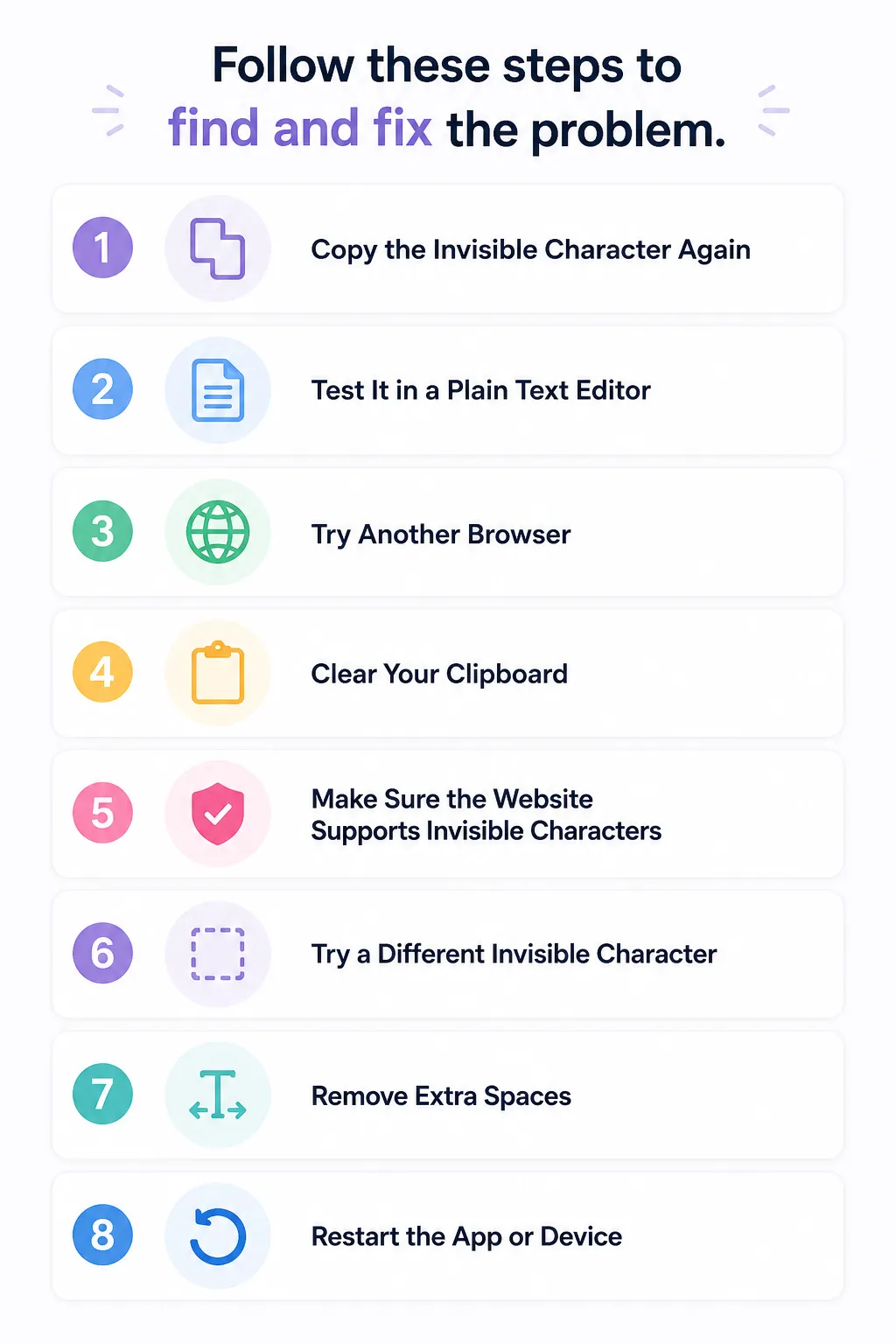
Follow these steps to find and fix the problem.
1. Copy the Invisible Character Again
A failed copy is one of the most common reasons the character doesn’t paste.
Make sure you:
- Copy only the invisible character.
- Avoid selecting extra spaces or line breaks.
- Copy from a trusted source.
Then paste it into a simple text editor before trying another website.
2. Test It in a Plain Text Editor
Open a basic text editor such as:
- Notepad (Windows)
- TextEdit in plain text mode (Mac)
- VS Code
- Any notes app
Paste the invisible character.
If the cursor moves or Backspace removes something invisible, the character copied successfully.
3. Try Another Browser
Sometimes the browser causes the problem.
If you’re using:
- Google Chrome
- Microsoft Edge
- Mozilla Firefox
- Safari
try another browser and test the invisible character again.
Browser extensions can also interfere with copying and pasting hidden Unicode characters.
4. Clear Your Clipboard
Clipboard managers sometimes remove invisible Unicode characters.
Try this:
- Copy some normal text.
- Copy the invisible character again.
- Paste it immediately.
If the problem continues, restart your browser or device.
5. Make Sure the Website Supports Invisible Characters
Not every platform accepts invisible Unicode.
Some websites:
- Remove hidden characters automatically.
- Replace them with nothing.
- Reject empty-looking input fields.
- Require visible characters.
If the invisible character works in one place but not another, the website is likely blocking it.
6. Try a Different Invisible Character
There are several invisible Unicode characters.
Examples include:
- Zero Width Space (U+200B)
- Zero Width Non-Joiner (U+200C)
- Zero Width Joiner (U+200D)
- Word Joiner (U+2060)
Some platforms accept one type while rejecting another.
Testing different Unicode characters may solve the problem.
It’s easy to copy a regular space by mistake.
A visible space is different from an invisible Unicode character.
Before pasting:
- Delete extra spaces.
- Copy only the hidden character.
- Test it with a character counter if needed.
8. Restart the App or Device
Occasionally, clipboard or input issues affect hidden characters.
Restarting your:
- Browser
- Mobile app
- Computer
- Smartphone
can fix temporary problems.
How to Check Whether the Invisible Character Was Pasted
Since you can’t see it, testing is important.
Try these methods:
- Move the cursor with the arrow keys.
- Press Backspace once.
- Use an online character counter.
- Paste into a code editor.
- Compare the character count before and after pasting.
If the cursor moves or the character count increases, the invisible character is still present.
Invisible Character vs Regular Space
| Feature | Invisible Character | Regular Space |
|---|
| Visible | No | Yes |
| Unicode character | Yes | Yes |
| Appears empty | Yes | No |
| Used for formatting | Yes | Limited |
| Supported everywhere | No | Yes |
| Easy to detect | No | Yes |
Conclusion
If your invisible character isn’t pasting correctly, the problem is usually easy to fix. In most cases, the issue comes from the website, browser, clipboard, or the specific Unicode character you’re using. By testing the character, trying different browsers, and checking platform support, you can quickly find the cause.
Remember that invisible characters are not supported everywhere. If one platform rejects them, another may accept them without any issues. A few simple tests can save you time and help you use invisible characters with confidence.